PassDial
simulator · Libre Space FoundationThe screen below is drawn by the dial's own firmware code, compiled to WebAssembly, with the same orbit maths. Move the clock, change where the dial lives, and tap it as you would on the desk.
python -m http.server in sim/web, or run “make -C sim” for still frames.Swipe sideways (or click a dot) for the other pages: the logo, a 24-hour clock with the day's passes, the list, the satellites over a globe, and the settings, where a switch shows times in UTC. Click a pass to see it on the whole screen and click again to go back; click the clock for its next pass. Drag the list to scroll. Holding the screen opens the settings too. Space plays or pauses time, ← → step ten minutes, [ ] change page.
Time
The dial
“As on the desk” works as the dial does. On the list, 10 seconds after the last tap it goes back to the top, or to the pass that is on, and after 15 it shows the logo unless a pass starts within 20 minutes (on the dial: 30 seconds and 3 minutes). The settings go back to the list; the clock, the globe and the logo stay. A pass opens on the whole screen when it starts, from any page.
Passes in the next 48 hours
| Satellite | Day | Rises | Sets | Peak | Length |
|---|
Put the firmware on a dial
Plug the dial into this computer with a USB-C data cable and press the button. It needs Web Serial, so use a Chromium-based browser (Chromium, Edge, Chrome, Opera). The board has two USB-C ports: use the one that shows up as a USB serial device with no driver (not the CH343 one).
just flash from the repository.
The page must be opened over HTTPS.
Installing wipes the dial, including its Wi-Fi settings. A dial that is already on your network can be updated from its own settings page instead.
The case
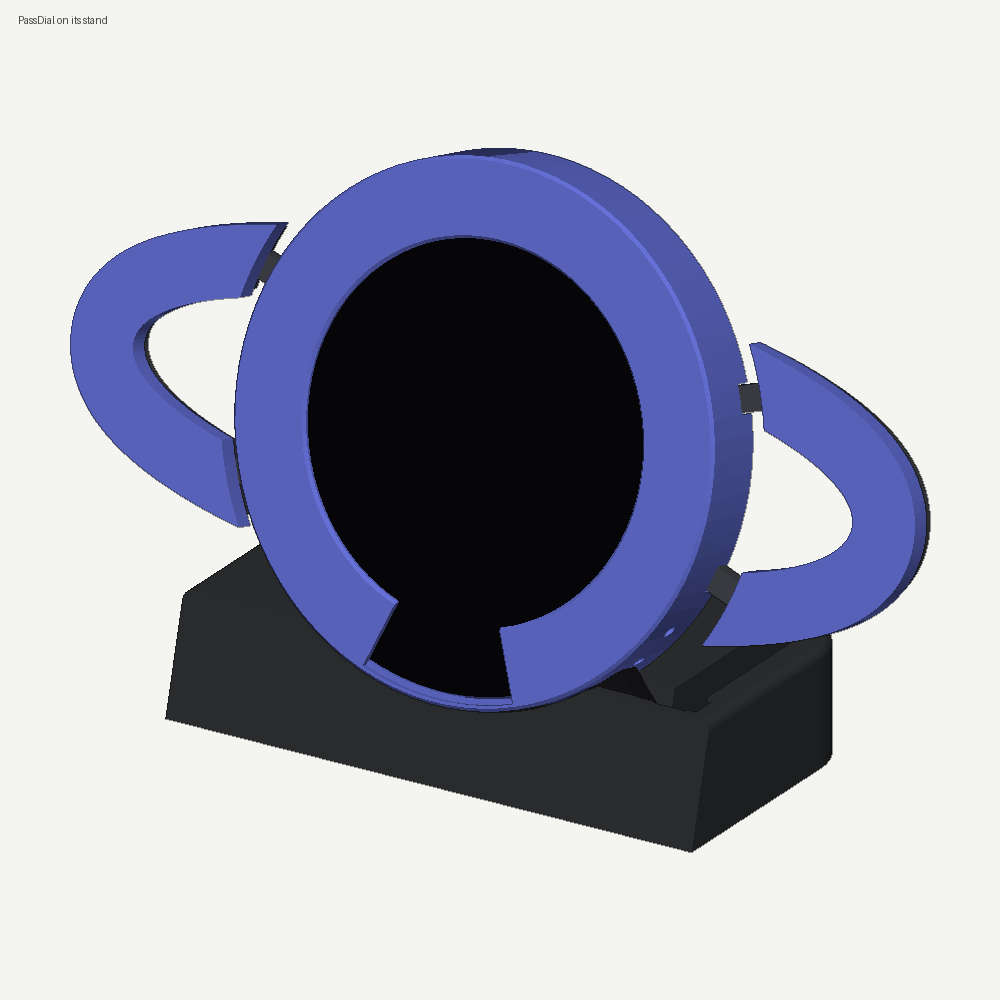
A 3D-printed shell, a back plate that carries the two logo rings, and a small stand weighted with a steel bar, modelled around Waveshare's own model of the board.
Documents
- Recipient card (Greek) PDF, 53 KiB
- Recipient card (English) PDF, 49 KiB
- Production guide and bill of materials PDF, 101 KiB
- Source code, enclosure and tools